If you are an Intuit QuickBooks user wanting to file your 1099 data to the new IRS Information Returns Intake System (IRIS), and do not want to type the data manually inside IRIS, you can follow these steps to create a CSV file that meets the IRIS formatting requirements.
Step 1: Open W2 Mate 2023 or above. If you do not have a copy of W2 Mate please checkout the demo at the page below:
https://www.realtaxtools.com/W2-Mate.html
Step 2: Connect to QBD (QuickBooks Desktop) and import your 1099 data. To do this select:
“Import Data > From QuickBooks (W2 or 1099 Data)” from the top menu inside W2 Mate. See screenshot:

Step 3: Review the data inside W2 Mate and make sure everything is accurate.
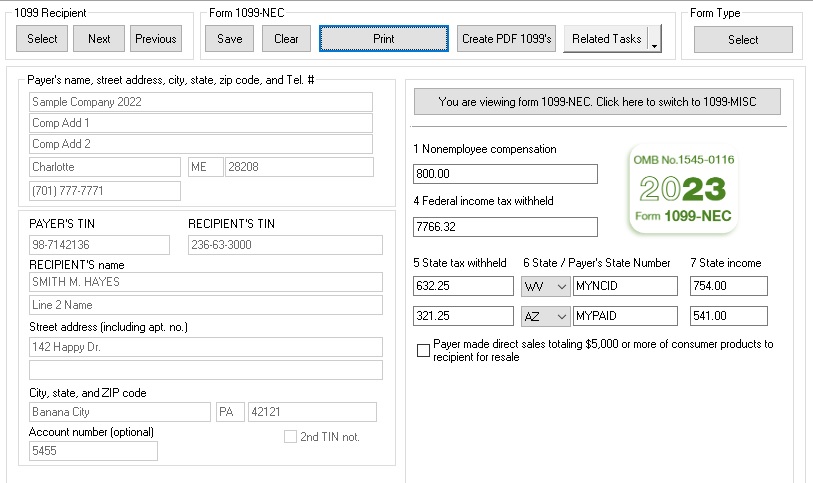
Step 4: Use W2 Mate to create the IRIS 1099-NEC CSV (Comma Separated) files that follow the template formatting guidelines as defined by the IRS. Please follow this tutorial:
Ste5 5: Follow this tutorial from the IRS to upload your CSV file to IRIS:
https://www.irsvideos.gov/Business/Resources/CSVFileUploadDemonstration